
Using AWS CodeArtifact to Share Code Across Multiple Vue Projects
1. Introduction
When developing multiple projects, we often encounter similar business logic. For example, both Project A and Project B might need to process a string in the same way.
How can we manage these duplicate codes? One approach is to write the same logic separately in Project A and Project B, but this leads to code redundancy and increased maintenance costs as projects grow.
A better solution is to package these common codes into a standalone npm package and install them in Project A and Project B using npm install. This way, we can manage and update shared code more conveniently.
However, in an AWS environment, to ensure code security, we typically do not use the public npm repository directly, even though it supports private repositories. AWS provides CodeArtifact as a private npm repository, enabling code sharing across multiple projects while maintaining security.
This article will introduce how to use AWS CodeArtifact to share code across multiple Vue projects.
2. Creating AWS CodeArtifact
2.1 Creating a Domain
First, we need to create a Domain for CodeArtifact in the AWS Console. Here, we will name it hushukang-repo.
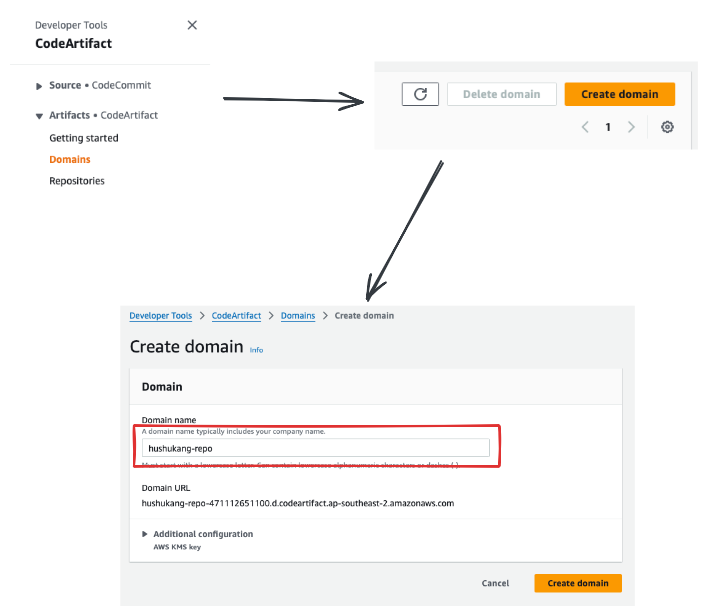
⚠️ Note: Only one CodeArtifact Domain can be created within the same AWS region.
2.2 Creating a Repository
Next, we need to create a Repository within the Domain, naming it common-ui.
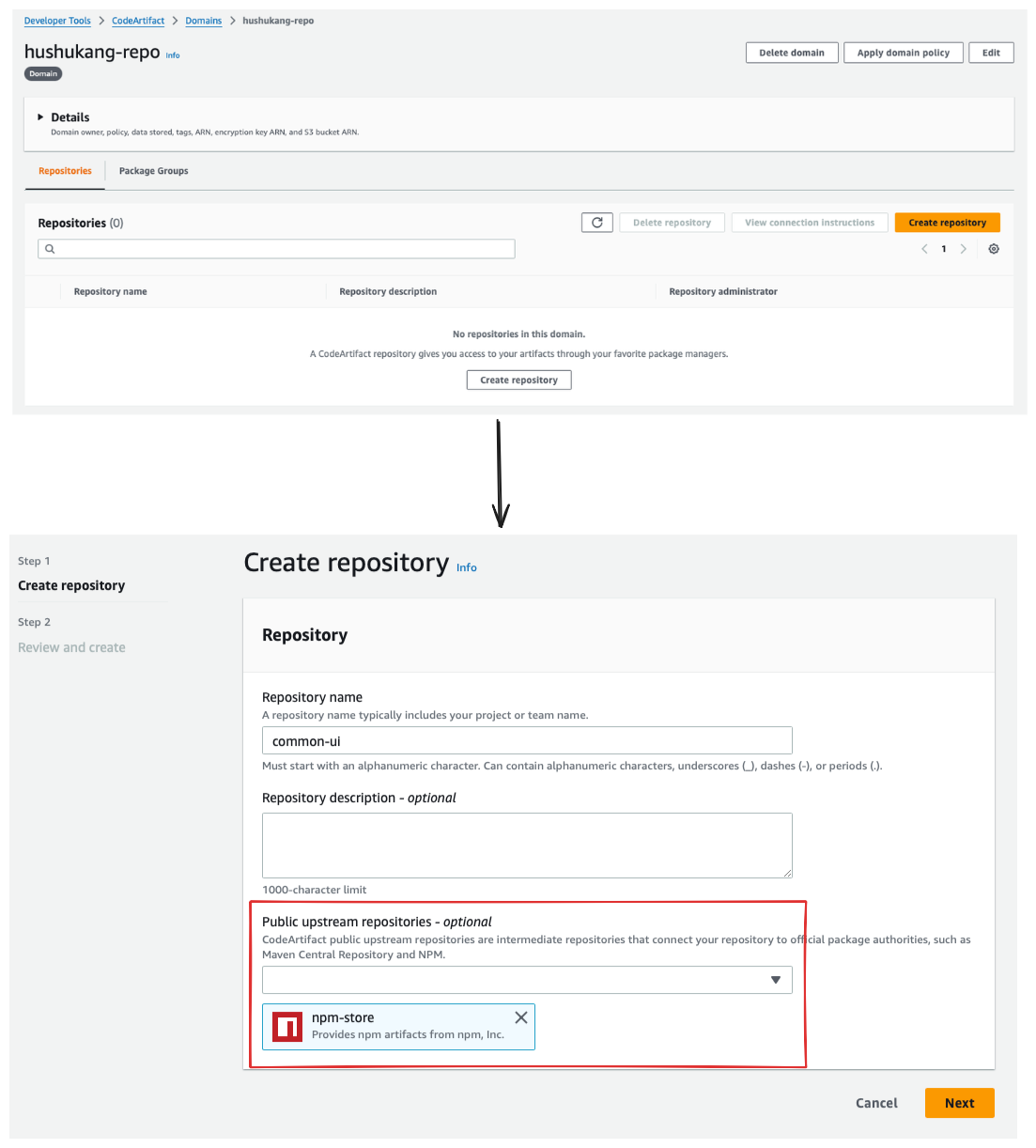
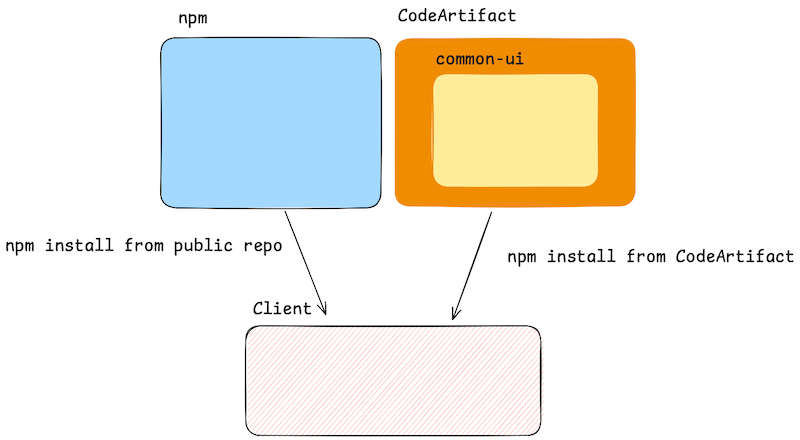
When creating the Repository, there is an option called Public upstream repositories. If this option is not configured, npm dependencies will be downloaded separately from npm public repository and CodeArtifact, as shown below:
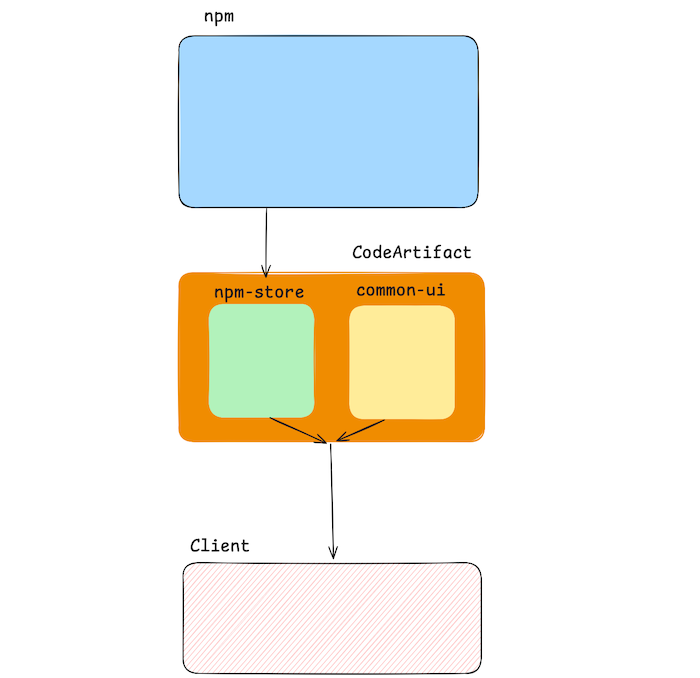
However, if we set Public upstream repositories to npm-store, CodeArtifact will automatically create a proxy repository named npm-store, allowing direct access to the npm public repository. This enables us to install all dependencies directly through CodeArtifact without separately accessing npm and CodeArtifact, as shown below:
2.3 Connecting to the Repository
To connect to the CodeArtifact Repository in a local development environment, use the following command:
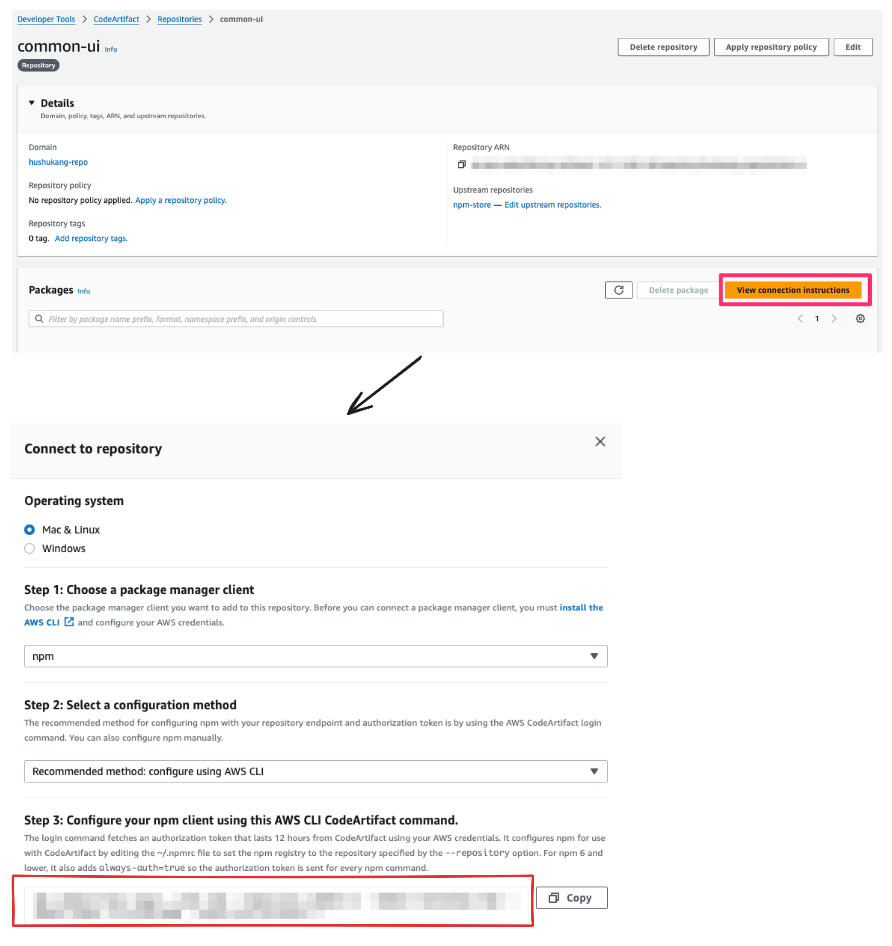
In Step 3, AWS provides the aws codeartifact login command:
aws codeartifact login --tool npm --repository <repository_name> --domain <domain_name> --domain-owner <aws_account> --region <aws_region>After executing this command, if the following message appears, it indicates a successful connection:
Successfully configured npm to use AWS CodeArtifact repository https://-.d.codeartifact..amazonaws.com/npm//
Login expires in 12 hours at 2025-02-10 05:01:57+09:00
3. Creating a Shared Component Library
3.1 Initializing a Vue Project
First, use Vite to create a Vue component library project:
# npm 7+, extra double-dash is needed:
npm create vite@latest common-ui -- --template vue-ts
Then, modify the dependencies field in package.json to peerDependencies to avoid Vue version conflicts:
"peerDependencies": { // <- dependencies
  "vue": "^3.5.13"
}
Why use
peerDependencies? When developing plugins, if dependencies are required from the host environment,peerDependenciesshould be used to ensure that the plugin does not install duplicate dependencies.
Additionally, add the following fields to package.json:
{
  "name": "@hushukang/common-ui", // This is my last name, which I used as an afterthought. npm install @hushukang/common-ui
  "version": "0.0.0",
  "main": "dist/common-ui.umd.js",
  "module": "dist/common-ui.es.js",
  "types": "dist/index.d.ts",
  "type": "module",
  "files": ["dist"]
  // other config
  // ...
}
3.2 Configuring TypeScript
Create a tsconfig.build.json file in the root directory with the following content:
{
  "extends": "./tsconfig.app.json",
  "compilerOptions": {
    "declaration": true, // Enable the generation of declaration files
    "declarationMap": true, // Generate Source Maps for declaration files
    "emitDeclarationOnly": true, // Only generate declaration files without generating JS files
    "outDir": "./dist", // Output directory
    "module": "ESNext", // Module type consistent with Vite
    "target": "ES2022", // Target ECMAScript version
    "strict": true, // Enable strict mode
    "skipLibCheck": true // Skip library checks to improve speed
  },
  "include": ["src/**/*.ts", "src/**/*.vue"], // Include TS and Vue files
  "exclude": ["node_modules", "dist"] // Exclude unnecessary content
}
3.3 Configuring Vite
Install vite-plugin-dts to generate .d.ts declaration files:
npm i -D vite-plugin-dtsModify vite.config.ts:
import vue from '@vitejs/plugin-vue';
import { defineConfig } from 'vite';
import dts from 'vite-plugin-dts';

// https://vite.dev/config/
export default defineConfig({
  plugins: [
    vue(),
    dts({
      outDir: 'dist', // Directory for generated files
      insertTypesEntry: true, // Generate entry type declaration file index.d.ts
      tsconfigPath: 'tsconfig.build.json', // Path to tsconfig
    }),
  ],
  build: {
    lib: {
      entry: './src/index.ts',
      name: 'CommonUI',
      fileName: (format) => `common-ui.${format}.js`,
    },
    rollupOptions: {
      external: ['vue'],
      output: {
        globals: {
          vue: 'Vue',
        },
      },
    },
  },
});
3.4 Creating a UI Component
Create HelloWorld.vue in src/components/:
<script setup lang="ts">
  defineProps({ msg: String });
</script>

<template>
  <div>
    <h1>{{ msg }}</h1>
  </div>
</template>
Create index.ts in src/components/:
export { default as HelloWorld } from './HelloWorld.vue';Create index.ts in src/:
export * from './components';At this time, our text is as follows:
|-- src
|   |-- components
|   |   |-- HelloWorld.vue
|   |   |-- index.ts
|   |-- index.ts
|-- package.json
|-- tsconfig.app.json
|-- tsconfig.build.json
|-- tsconfig.json
|-- tsconfig.node.json
|-- vite.config.ts
4. Building and Publishing the Component Library
Run npm run build, then publish to AWS CodeArtifact:
# Login to AWS CodeArtifact
aws codeartifact login --tool npm --repository <repository_name> --domain <domain_name> --domain-owner <aws_account> --region <aws_region>

# Publish SourceCode
npm publish
5. Using the Component Library in Projects
Install the component library in Project A or Project B:
# Login to AWS CodeArtifact
aws codeartifact login --tool npm --repository <repository_name> --domain <domain_name> --domain-owner <aws_account> --region <aws_region>

# install common-ui library
npm install @hushukang/common-ui
Use it in a Vue component:
<script setup lang="ts">
  import { HelloWorld } from '@hushukang/common-ui';
</script>

<template>
  <HelloWorld msg="Hello World" />
</template>
6. Conclusion
Using AWS CodeArtifact, we can securely and efficiently share component libraries across multiple Vue projects, avoiding duplicate code and improving maintainability.